Set it up once. The board keeps it.
You configure RhinoLink from the RhinoLED app, and the controller stores that configuration itself — no cloud account, no WiFi, no subscription. This page covers the guided first setup, what lives on the board versus in the app, how saving works, what a factory reset does, and what to try when something is not behaving.
BETA pre-order — first production units are preparing to ship.
Guided first setup
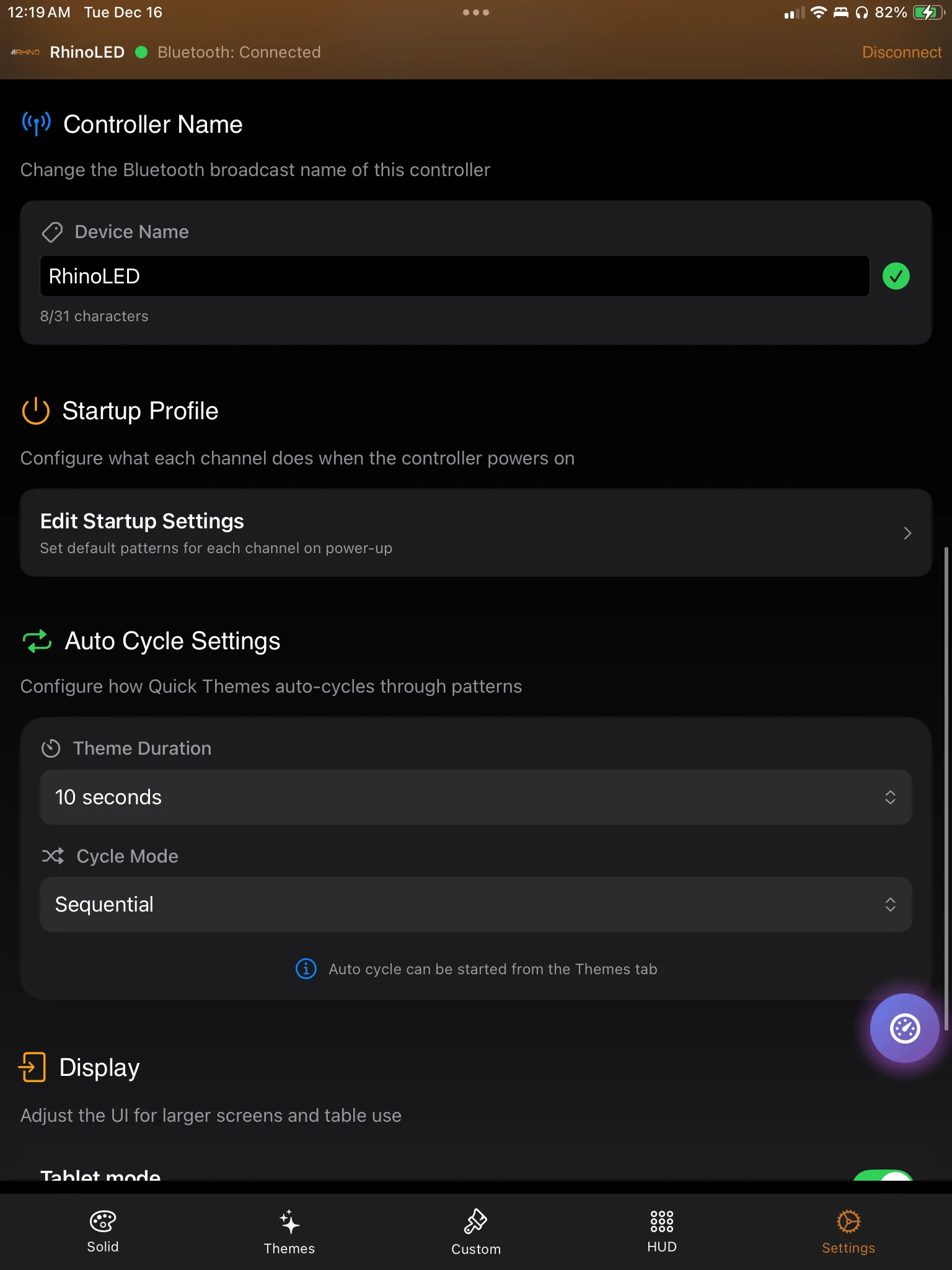
The first time you connect, RhinoLED opens a setup wizard and walks you through configuring the controller, in order, instead of leaving you to find each screen on your own. You can go back and change anything later — the wizard is a starting path, not a one-time gate.
1. Connect
Pair with the controller over Bluetooth Low Energy from the app. The controller shows up under its Bluetooth name, which you can change once you are in.
2. Work through setup
Setup covers the same things the board stores: your LED configuration and 5 zones, the vehicle inputs you want mapped, output settings, and the state you want at power-on.
3. Ride
From that point the configuration is on the vehicle. You pair again when you want to change something or drive the lighting from the app — not to make the vehicle behave the way you set it up.
What RhinoLink remembers
Two places hold your settings, and it is worth knowing which is which. The controller holds everything the vehicle needs in order to behave correctly on its own. The app holds the things that are about how you like to work.
On the vehicle
Stored on the controller
Written to the RhinoLink board. It survives power cycles, a new phone, and a reinstalled app.
- Trigger mappings — which vehicle input drives which action
- LED configuration — how your 5 zones are set up
- Startup Profiles — the state selected zones start in at power-on
- Automotive variant selections — the brake, turn and reverse patterns you chose
- Output settings — how the 8 relay-triggering outputs behave
- Bluetooth device name — what the controller calls itself
On your phone
Stored in the app
Kept by RhinoLED on the phone. A factory reset on the controller does not touch any of it.
- HUD layout — how you arranged your control screen
- Virtual shortcuts — the app-side buttons you built
- Favorites — the looks you starred
- Custom themes and My Palette — the colors you mixed and saved
- App-stored custom patterns — patterns you built in the app
- App-local channel and output labels — the names you gave them
RhinoLink controls auxiliary and accent lighting. It is not a replacement for required factory vehicle lighting. Lighting regulations vary — check local requirements before public-road use.
Configuration lives on the board
Your configuration is written to the controller itself. There is nothing behind an account, nothing waiting on a network, and nothing that expires.
No cloud, no account
Settings are stored on the board, not on a server. There is nothing to sign into and no sync step that can be out of date.
No WiFi, no cell service
The app talks to the controller directly over Bluetooth Low Energy. A trailhead with no bars changes nothing about how the vehicle behaves.
No subscription
The controller you bought does the work. Nothing about it stops functioning because something lapsed.
The vehicle works without the phone
Once configured, vehicle-triggered functions run on the board. You pair to change things and to drive the lighting interactively — not to make a mapped input do its job.
Saving happens on its own
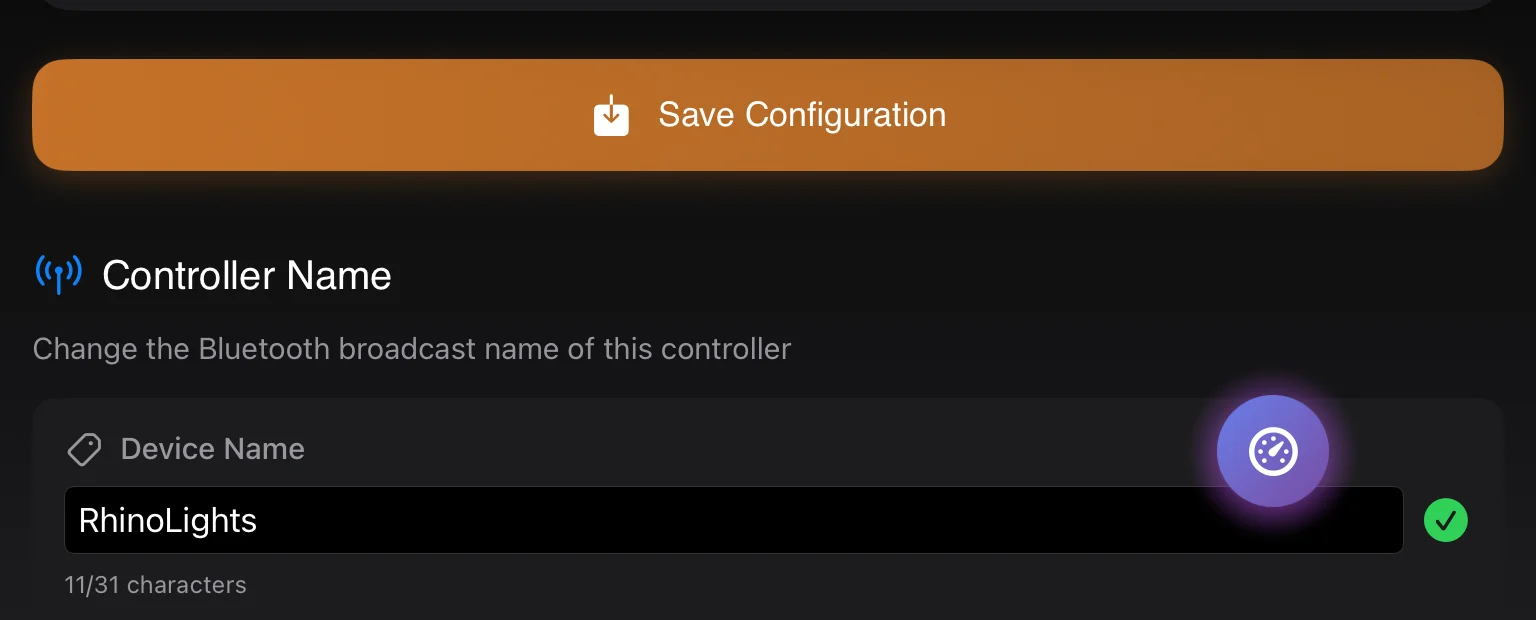
There is no save button to remember. The controller waits until you have stopped changing something, then writes it — which is why dragging a brightness slider does not turn into hundreds of separate writes.
Force-saved on disconnect
If you close the app or walk out of range while trigger configuration is still pending, the write is forced before the connection goes away. Leaving mid-edit does not cost you the edit.
Written safely
Settings are written in a way that survives a bad moment. If power is cut in the middle of a save, the controller comes back holding either the previous configuration or the new one — not a half-written mix of the two. A dead battery during a save is an inconvenience, not a bricked configuration.
The app reads from the hardware
When RhinoLED connects, it reads the current configuration out of the controller. What you see on screen reflects what the board is actually holding, rather than a local copy the app hopes is still accurate.
That matters in the ordinary cases: you reinstalled the app, you are on a new phone, someone else set the vehicle up, or you simply do not remember what you did last season. Connect, and the app tells you what is really there.
Startup Profiles are stored here too
A Startup Profile is the state you want selected zones to start in when the vehicle powers on — pattern, color, brightness and speed. It is controller-side configuration, applied at power-on with no phone interaction, and it is separate from what happens when a trigger releases a zone.
See how Startup Profiles work, including how they differ from trigger restore.
Name the controller
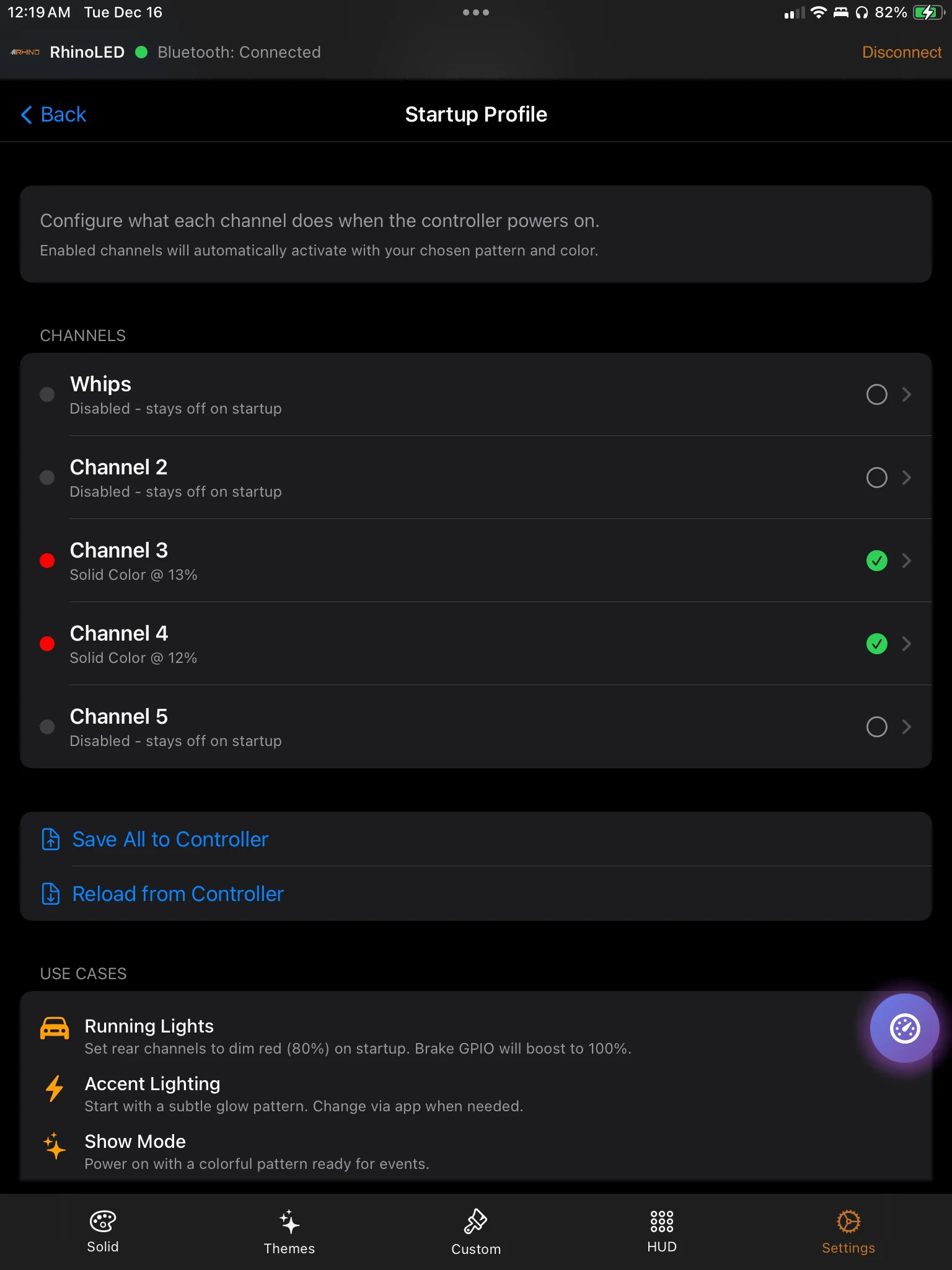
The Bluetooth device name is yours to set, up to 31 characters. Worth doing the moment there is more than one machine in the garage — picking the right controller out of a Bluetooth list is much easier when it is called something you chose.
The name is stored on the board, so it follows the vehicle rather than the phone. A factory reset returns it to RhinoLED.
What a factory reset does
A factory reset is a controller-side operation, started from the Settings screen in RhinoLED. It clears what the board is holding. It does not reach into the app on your phone.
Cleared by the reset
Controller-side settings
- Trigger mappings
- LED configuration
- Startup Profiles
- Automotive variant selections
- Output settings
- The Bluetooth name returns to RhinoLED
Untouched by the reset
App-local content
- HUD layout
- Virtual shortcuts
- Favorites
- Custom themes and My Palette
- App-stored custom patterns
- App-local channel and output labels
After the reset
The lighting comes up solid green at approximately half brightness. That is how you know the reset went through. Reconnect with the app and configure the controller again — your saved themes, palettes and HUD layout are still on the phone waiting for you.
How you can tell what state the controller is in
RhinoLink does not run an elaborate color-code system on your lights, and we would rather say so than invent one. There is one state the lighting itself tells you about:
Freshly reset
After a factory reset the controller drives solid green at approximately half brightness. If that is what you are looking at and you did not expect it, the board has been reset.
Everything else
What you see is your configuration doing what you told it to — a Startup Profile at power-on, remembered runtime state, a trigger holding a zone, or whatever you last set from the app.
Troubleshooting
The app will not connect
- Check that Bluetooth is on for the phone and enabled for RhinoLED.
- Confirm the controller has power — the lights should be lit.
- Disconnect in the app, then connect again.
- Move closer to the vehicle and retry.
A change did not stick after a power cycle
- Give the controller a few seconds after your last edit — trigger and input configuration writes about 5 seconds after you stop, lighting state about 10 seconds after adjustments stop.
- Reconnect and check the screen — the app reads the live configuration off the board, so it will show you what actually saved.
- Make the change again and let it settle before shutting the vehicle down.
The lights came up solid green at approximately half brightness
That is the post-reset state. The controller has been factory reset, so trigger mappings, LED configuration, Startup Profiles, automotive variant selections and output settings need to be set up again. Your app-side themes, palettes, favorites and HUD layout are untouched.
The controller is not the name you expect in the Bluetooth list
Either it has not been renamed yet or it has been reset — a factory reset returns the name to RhinoLED. Connect and set it to whatever you want, up to 31 characters.
None of the above
Talk to Rhino. Tell us what the lights are doing and what you last changed — that is usually enough to narrow it down quickly.
Configuration that stays on the vehicle.
Set it up once from the app. The controller holds it — through power cycles, new phones and dead zones.
BETA pre-order — first production units are preparing to ship.